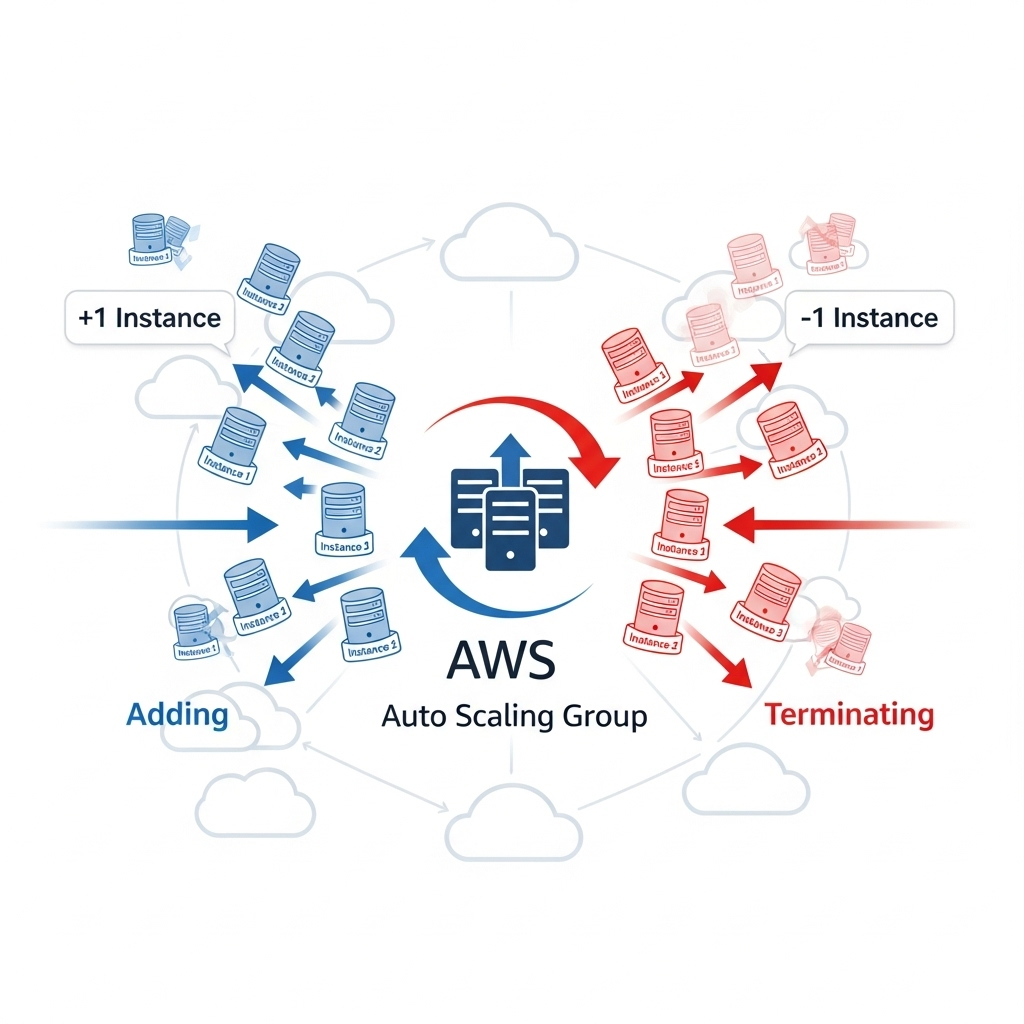
If you’ve ever set up an Auto Scaling Group (ASG) with a Load Balancer in AWS, you might have noticed a frustrating problem: your instances keep spawning and terminating repeatedly. This “flapping” can drive costs up and make your app unreliable. Here’s how to understand why it happens and how to fix it.
1. Understand Auto Scaling and Health Checks
AWS Auto Scaling is designed to maintain your desired number of instances. If an instance fails a health check, ASG terminates it and launches a new one.
There are two levels of health checks:
a. Load Balancer Health Check
- The Load Balancer (ALB or NLB) regularly checks whether your instance responds correctly on a specified URL/path.
- Example: HTTP check on
/healthor/index.htmlreturns200 OK. - If the instance fails, it is marked unhealthy and ASG will replace it.
b. EC2 Health Check
- Checks the instance system status (CPU, network, underlying hardware).
- Less common cause of flapping than LB health checks, but still important.
✅ Best practice: Use ELB/ALB health check for Auto Scaling, so scaling decisions reflect your app’s actual readiness.
2. Check Your Target Group Health Checks
- Go to EC2 → Load Balancers → Target Groups → Health Checks.
- Ensure the Path is correct (
/health,/index.html, or your app’s health endpoint). - Confirm Protocol (HTTP/HTTPS) and Port match your app.
- Adjust thresholds:
- Healthy threshold: number of successes before marking healthy
- Unhealthy threshold: number of failures before marking unhealthy
- Interval and Timeout: how often and how long to wait
💡 If your app takes time to start, increase the Timeout or use the ASG Grace Period so instances aren’t terminated prematurely.
3. Configure Auto Scaling Properly
- Min/Desired/Max capacity:
- Min = minimum instances to keep running
- Desired = current running instances
- Max = limit of how high scaling can go
- Example for a small production app:
Min=2, Desired=2, Max=5 - Cooldown period: prevents rapid scaling up/down. Default is 300 seconds.
4. Test Your AMI / Instance
If your ASG launches instances from a new AMI, make sure the instance:
- Boots successfully
- Runs your app correctly
- Responds to the health check URL with
200 OK
💡 A failing AMI often causes the “launch → unhealthy → terminate → relaunch” cycle.
5. Don’t Forget Security Groups
- LB → EC2 traffic must be allowed in the EC2 security group.
- EC2 → LB communication is essential for passing health checks.
✅ Summary
Frequent instance launch/termination is usually caused by:
- Health check failures (LB path incorrect, app not responding)
- Aggressive scaling policies (CPU/memory thresholds too tight)
- Misconfigured AMI or Launch Template
Solution:
- Fix health check URL & path
- Test AMI manually
- Set appropriate Min/Desired/Max values
- Add cooldown periods
- Ensure security groups allow LB → EC2 traffic
With these steps, your Auto Scaling group will stay stable, cost-efficient, and reliable, letting your Load Balancer serve traffic smoothly.
Views: 7